Starting an Evacuation
- Open Sign In App Companion and tap the evacuation icon at the bottom.
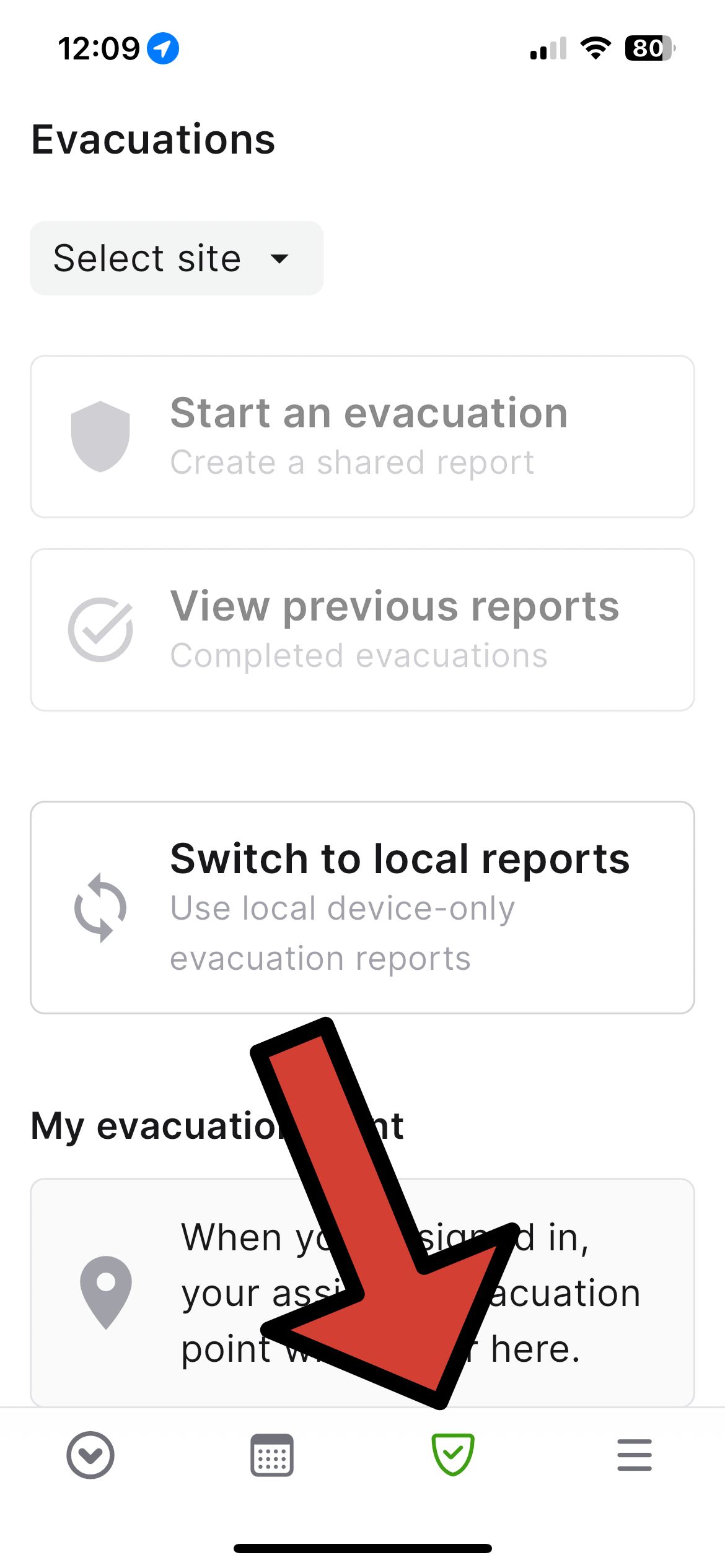
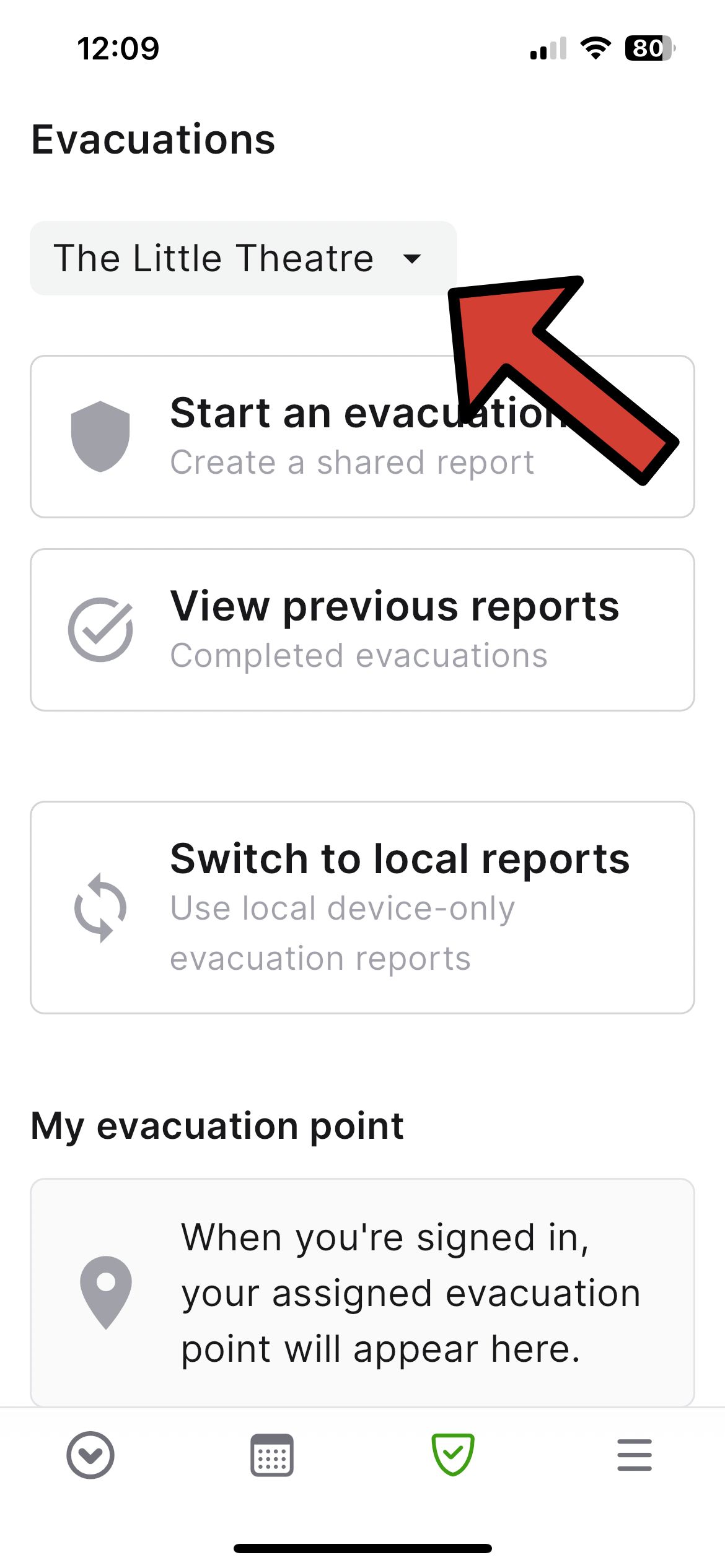
- Ensure the correct Site (currently only available at The Little Theatre) is selected and tap Start an evacuation.
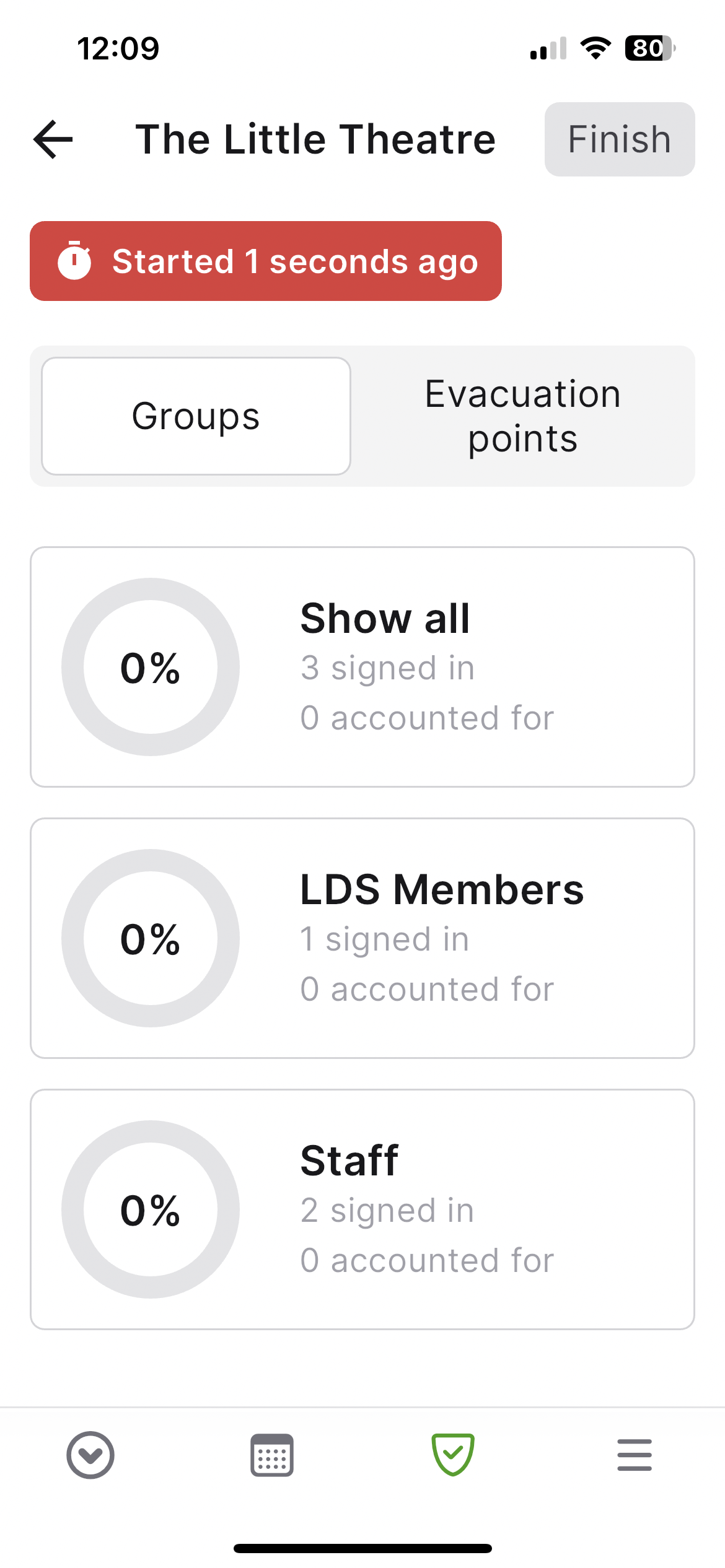
- A timer will display the duration of the evacuation.

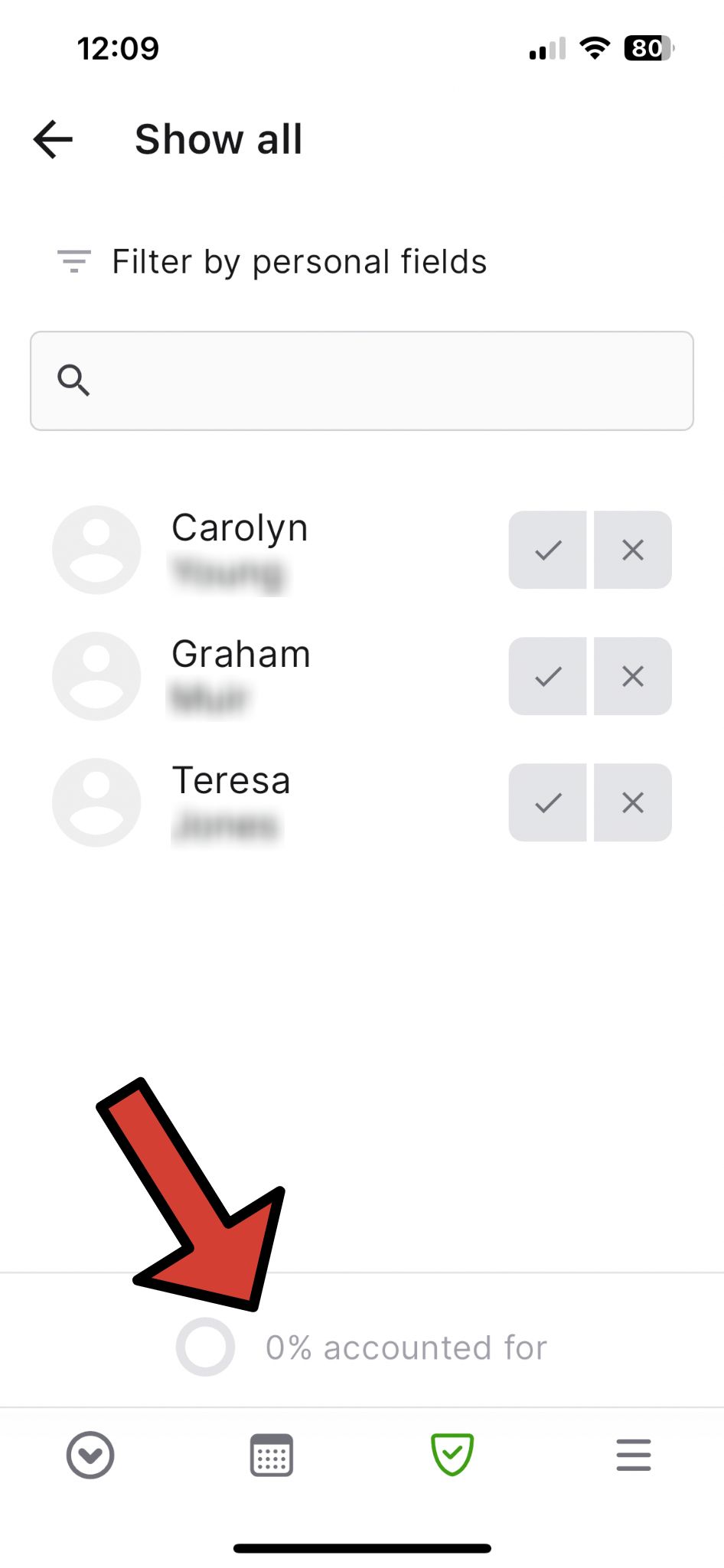
- View the overview of the shared report and toggle between sorting by groups or evacuation points.
In these screens you can also see the list of participants who have joined the report, including users logged into the portal, staff on Companion, and connected iPads. You can also optionally add comments visible to everyone who has joined the report.
Accounting for Evacuees
- Use the filter to switch between groups.
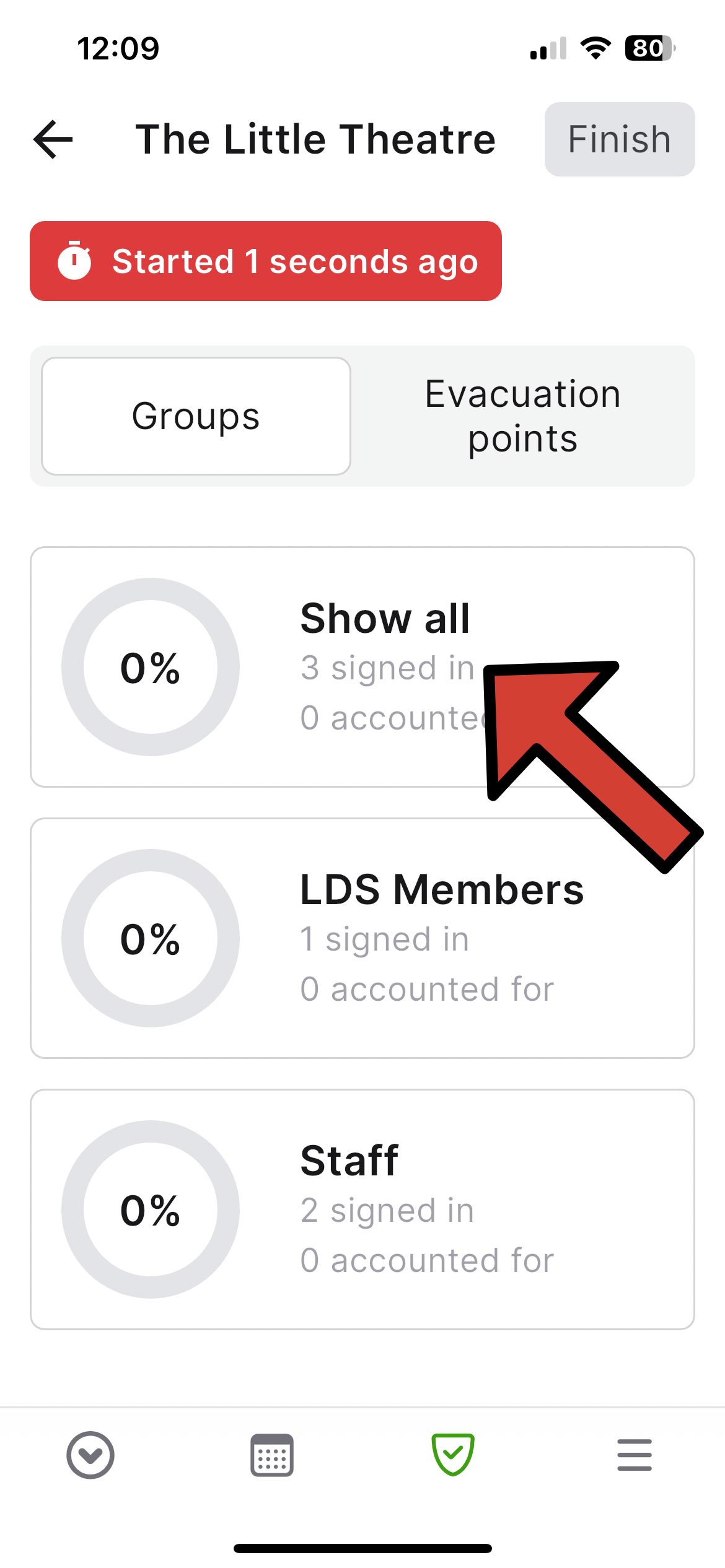
- Tap the group or evacuation point to see all evacuees. You can click on 'Show all' to see everyone signed in regardless of group.
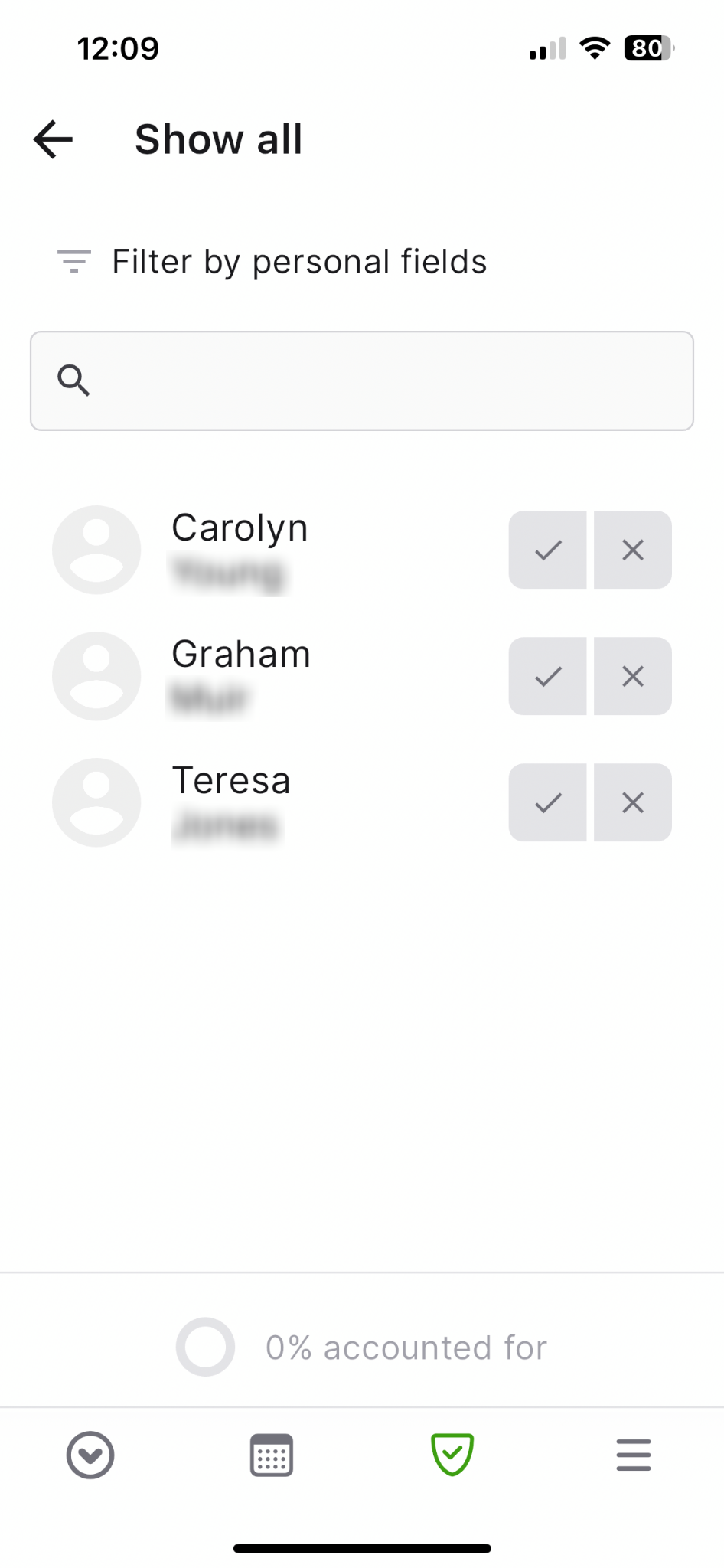
- Mark an evacuee as present by tapping the tick, or as missing by tapping the cross.
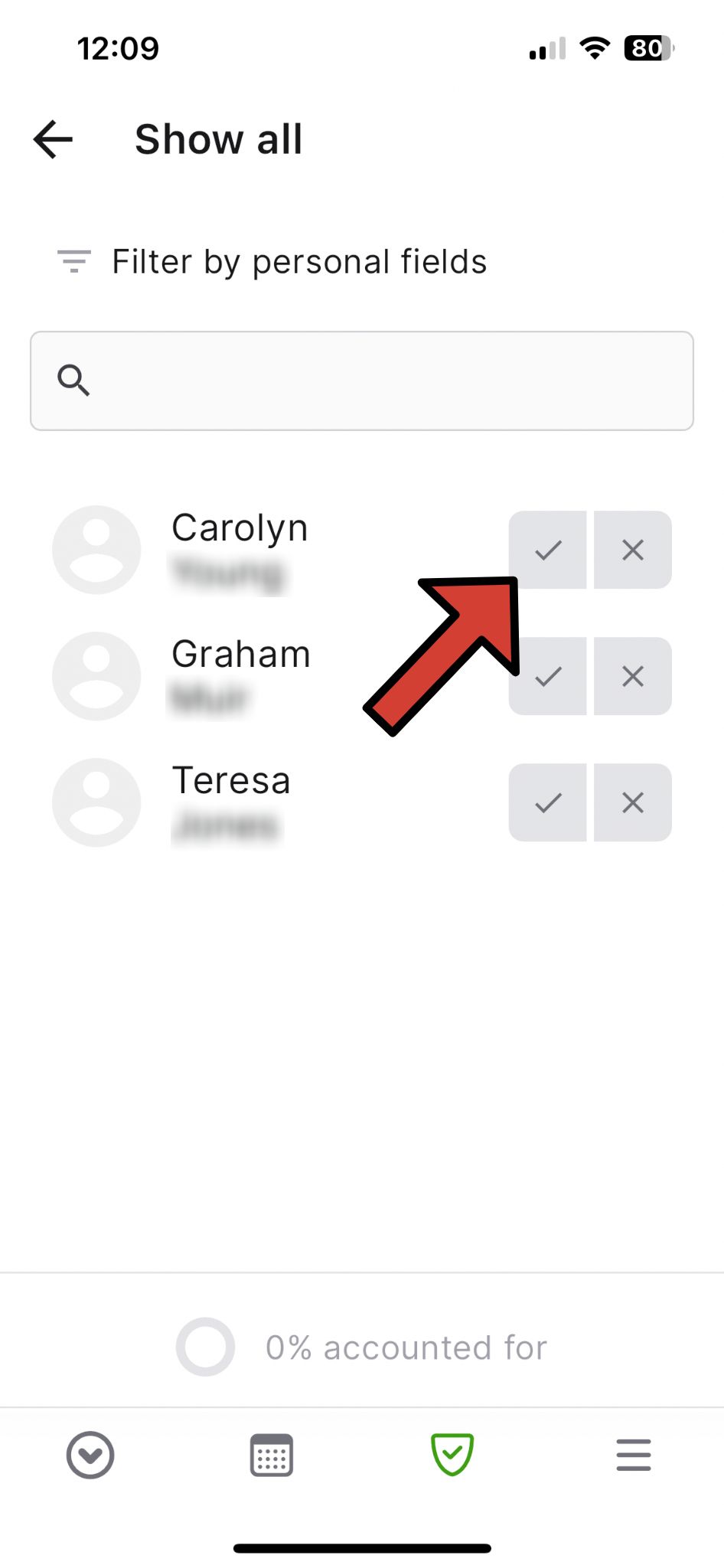
- View the progress circle at the bottom of the screen showing the percentage of accounted evacuees.
Joining the Report (optional)
- Once a report is in progress, select the evacuation option from any device.
- Join the shared report to see evacuees already accounted for and start checking off people from your evacuation point or visitor group.
- All actions will be shared with other devices that have joined the report.
Adding Comments (optional)
- Add comments to the evacuation report in real-time to share information across devices.
- Comments are included in the completed report for record-keeping and communication during the evacuation.
Ending and Leaving Reports
- Once everyone on site is accounted for, tap Finish.
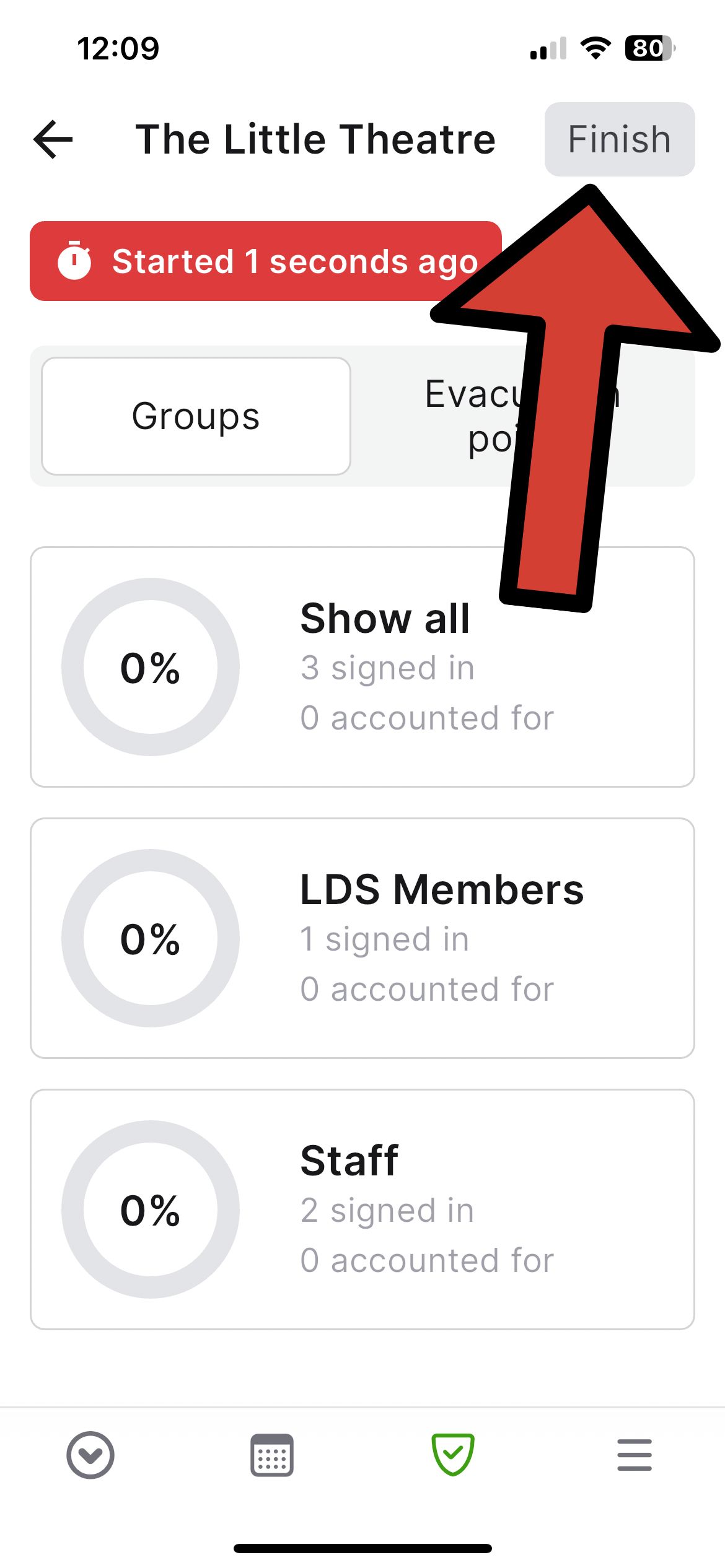
- Choose Close the report for all to end the report for all participants (this action cannot be undone). You should only do this once you are certain that everyone is accounted for.
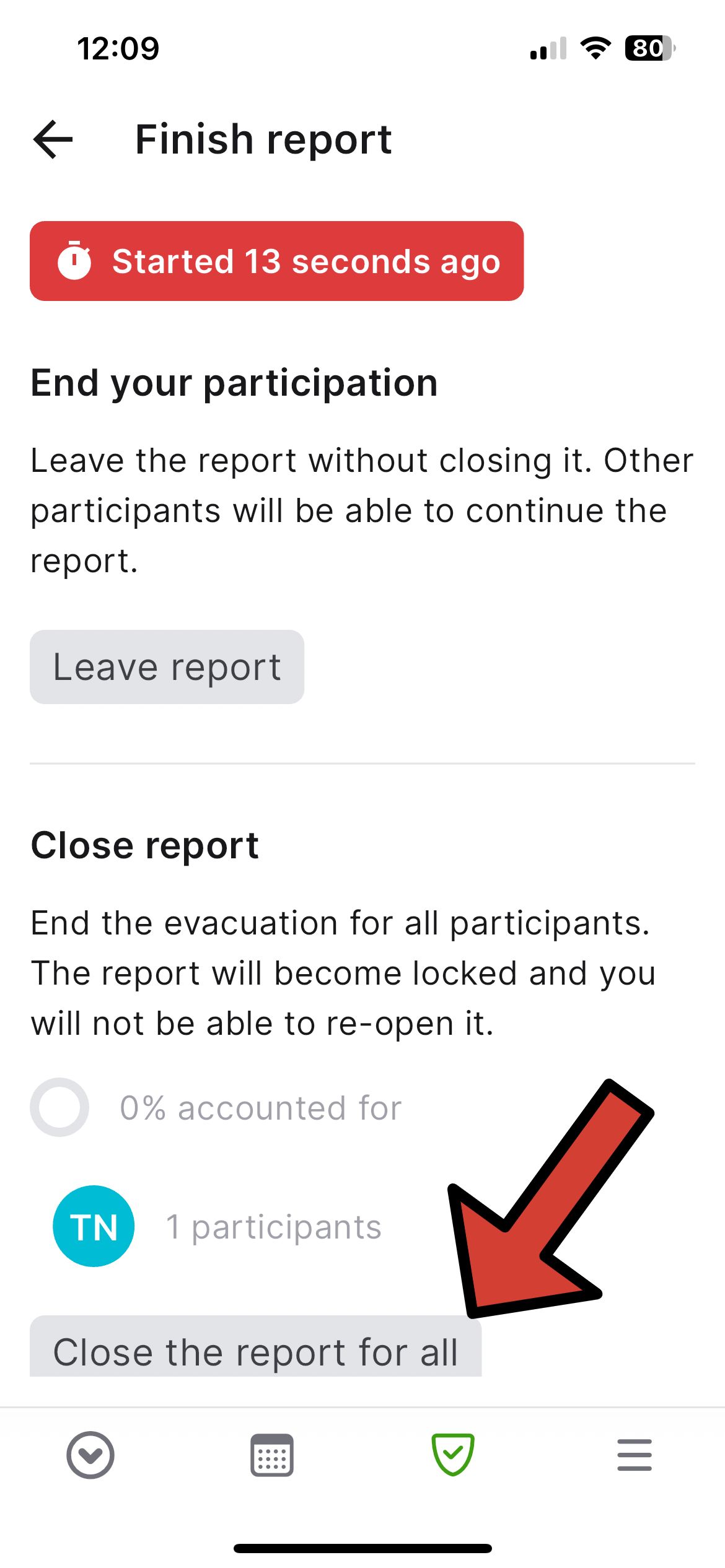
Note: If you select Leave report, this will keep the evacuation running while your device leaves the report. You can re-join the report later. This action will not end the report.
Tip: After completing the site evacuation, end the report immediately to record the accurate duration. The report will automatically close after 4 hours of inactivity.
Last updated: 17 July 2024
